eggwaveguy
Members
-
Joined
-
Last visited
-
thanks again for that, these are all i needed doing (for now lol)
-
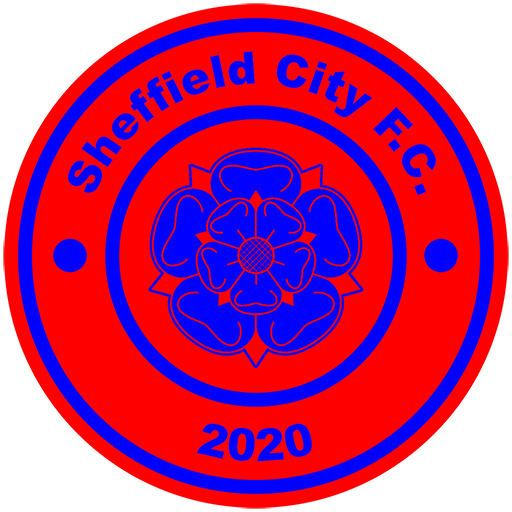
Hi all sorry to post right after my last post but i realised the badge i had been given would not work because it is a create club which has to be red green and blue. also if you could make this other badge like it also that would be appreciated, this one is fine as red and white just needs the embossing stuff.

-
yeah I can understand that plenty then. Thanks again and enjoy the rest of your day 👍
-
Thanks for that mate. looks just great. Any chance you'd be able to tell me how you edited it to be like this? have you got a photoshop blend preset or something to apply the emboss and the pattern or something? would be nice to know how to make these in the future without depending on you or others to do it
-
Hi all, this is my first post here so not sure if it's the right place for it. I've made a logo for a create club I've done however because I downloaded the plastic logos megapack this new logo looks out of place. I wondered if there was anyone who knew of a way to make my logo more like the logos in the pack and if they could teach me how to do this it would be very much appreciated. I had managed to get it looking slightly embossed but nowhere near as good as any of the ones in the pack nor did i get the embossed patterns either. Included is the logo I have made and the an example of one of the pack logos as reference. Thanks in advance