Derek
Administrators
-
Joined
-
Last visited
Everything posted by Derek
-
There is work happening in the background mate. Germany (101 logos) coming tomorrow from me and @kristo is now helping me with the project and will start France soon. Italy Serie A & B are complete and La Liga done. These packs are big and take time so release of smaller packs help to release something rather than a week of nothing. Australia also coming for that reason.
-
Hi guys I've set up this section to start researching the Stadium Pack by @ElMatador. This will work in the same way as the Logo Update thread by including the image, ID and name. Some info from ElMatador on sizes etc below. It would be great to have all your input to help improve and expand on the pack if you are interested. Here is the base pack which contains over 5,000 images of inside stadium pics. @cameosis @AndreaSSL1900 @Markitos @schweigi @Alieeks @Lavegaks @rioplworks @ateesz @diego1960 @Heval @Oleksandr_Horobets @The Newic @NassFas @TehransVeryOwn @Vakama2619 @Thewes @tomek0290 @minky79 @Moondog777 @kristo @Copywriter @spankz @so17722 @hlourencoam @CobraHarp91 @Vasiliy92 @Manojl76
-
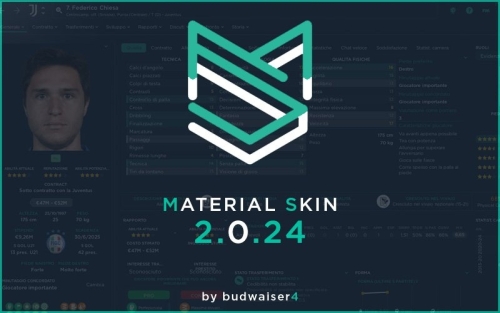 What I like about this skin the most is the clean look and how it displays logos and kits so well. Excellent work as always by @budwaiser4 👏👏👏
 -
It's really easy mate. So once you've finished setting up the teams and league in the editor go to Sports Interactive -> Football Manager 2024 -> Editor Data You will see the file there with the name you saved it as. I'll post this in the thread also to help others. On the logos can I ask is text to be in English or Hebrew? Also what style of kits between FMG, PR or FC12?
-
Yes I'll create that over the weekend mate.
-
Are these fantasy or defunct teams mate? It will take time to do this so I will probably take the same route as the Game of Thrones thread by using one kit template per team with different colours etc. You can check that out below. Will you be able to share the fmf file once its completed so we can share with everyone?
-
I've moved the thread now guys but a link will be in the original location for the next 30 days. Thanks
-
 Fantastic skin by @vince_957 👏👏👏 Thank you so much for sharing this with us 😀
 -
Guys any objections if I move this thread to the Researchers Club? I'm looking to utilise our Clubs sections better going forward and want to expand on them.
-
FMG Round Logos USA This pack includes all playable clubs for the MLS. This pack also includes a logo for San Diego ahead of their entrance to the MLS in 2025. Do you want to use this pack with one of our Megapacks? If you want to use this pack as well as one of our logo megapacks simply follow the instructions below. Create a 'logos' folder within your FM graphics folder Move your existing megapack into that folder and place b_ at the start of the pack name ie. FMG Standard Logos should now be b_FMG Standard Logos Then create a new folder called a_FMG Round Logos within the new logos folder. Place any FMG Round Logos packs in the a_FMG Round Logos and reload your skin. FM will now prioritise the FMG Round Logos and show the FMG Standard Logos when a logo is not available.
-
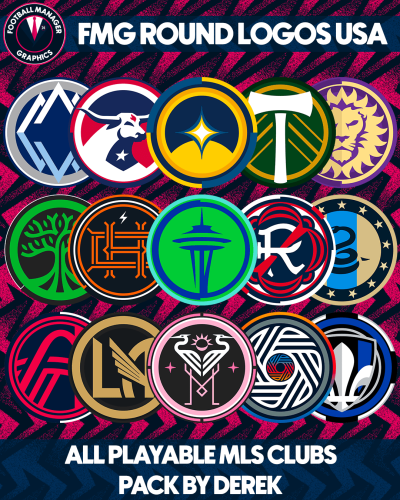 FMG Round Logos USA This pack includes all playable clubs for the MLS. This pack also includes a logo for San Diego ahead of their entrance to the MLS in 2025. Do you want to use this pack with one of our Megapacks? If you want to use this pack as well as one of our logo megapacks simply follow the instructions below. Create a 'logos' folder within your FM graphics folder Move your existing megapack into that folder and place b_ at the start of the pack name ie. FMG Standard Logos should now be b_FMG Standard Logos Then create a new folder called a_FMG Round Logos within the new logos folder. Place any FMG Round Logos packs in the a_FMG Round Logos and reload your skin. FM will now prioritise the FMG Round Logos and show the FMG Standard Logos when a logo is not available. Installation Guide - FMG Round Logos 1) Download the pack of your choice. 2) Unzip the files using an archiver. We recommend Winrar for Windows and Keka for Mac but most applications will work. https://www.win-rar.com/start.html?&L=0 https://www.keka.io/en/ 3) Once unpacked place your pack into the folder below based on your operating system. Windows: \Users\<your username>\Documents\Sports Interactive\Football Manager 2024\graphics\ Mac OS: Users/YOUR MAC USERNAME/Library/Application Support/Sports Interactive/Football Manager 2024/graphics 4) Next you will want to go to FM and select 'Preferences' from the start screen or in your game and select 'Advanced". 5) Then untick 'Use caching to decrease page loading times'. 6) Next tick 'Reload skin when confirming changes to preferences'. 7) Finally, select 'Reload Skin' and after a brief pause your graphics will be visible. Installation Guide - FMG Monthly Logo Updates Drag and drop the contents (including the config files) of each folder in this update pack into the corresponding folder in the megapack and replace the existing logos when prompted. Do not drag and drop the actual folders as this will overwrite your megapack. This MUST be done for all four sizes (512x512px, 180x180px, 50x36px and 25x18px) or you will have issues displaying the logos in-game. Then simply go to preferences in FM and reload your skin. Alternative | Fantasy | Retro Logos To use any of the alternative, fantasy or retro logos in game you must remove the text at the end of each logo i.e. alt, retro or fantasy and drag and drop into the normal logo folder in the megapack. You will need to repeat this for all four sizes. Then simply go to preferences in FM and reload your skin. I would advise creating a copy of the original logos before replacing them. FM Mobile Installation Guide - FMG Logo Megapacks 1) Download the pack of your choice. 2) Unzip the files using an archiver. We recommend Winrar for Windows and Keka for Mac but most applications will work. https://www.win-rar.com/start.html?&L=0 https://www.keka.io/en/ 3) Delete all @2x folder from the pack including Clubs, Competitions and Nations. 4) Copy the files from your computer to your mobile device. 5) Once the files are transferred place your pack into the folder below. Sigames/Documents/Sports Interactive/Football Manager 2023 Mobile/pictures/ 6) Open the game and your logos should display. If they don't, go to Sigames/Documents/Sports Interactive/Football Manager 2023 Mobile/cache folder on your device and delete any files that are present. Then restart your game.
 -
-
Cherry Hinton @aymonadren4
-
-
I'm going to remove the other packs for the moment mate and post additional packs as they are completed. I will post them for the moment as a nation and all its playable clubs. You should also be able to download Japan for now. As I'm doing this alone it takes some time along with the other graphics I'm working on. WIP Australia Germany USA Once I've all playable teams completed they will be made into a megapack but this will take some time.
-
FMV Flags Details Netherlands & Gibraltar - Additional files added to fix national logos rather than flags appearing due to SI files. Images now 360x220 pixels rather than 180x110 pixels.
-
FMG Vapour Flags Details Netherlands & Gibraltar - Additional files added to fix national logos rather than flags appearing due to SI files. Images now 360x220 pixels rather than 180x110 pixels.
-
FMG Stone Flags Details Netherlands & Gibraltar - Additional files added to fix national logos rather than flags appearing due to SI files. Images now 360x220 pixels rather than 180x110 pixels.
-
FMG Steel Flags Details Netherlands & Gibraltar - Additional files added to fix national logos rather than flags appearing due to SI files. Images now 360x220 pixels rather than 180x110 pixels.
-
FMG Standard Flags Details Netherlands & Gibraltar - Additional files added to fix national logos rather than flags appearing due to SI files. Images now 360x220 pixels rather than 180x110 pixels. Straight edges compared to the original FM flags.
-
FMG Round Flags Details Netherlands & Gibraltar - Additional files added to fix national logos rather than flags appearing due to SI files. Images now 360x220 pixels rather than 180x110 pixels. Straight edges compared to the original FM flags.
-
FMG Plastic Flags Details Netherlands & Gibraltar - Additional files added to fix national logos rather than flags appearing due to SI files. Images now 360x220 pixels rather than 180x110 pixels. Straight edges compared to the original FM flags.
-
FMG ING Flags Details Netherlands & Gibraltar - Additional files added to fix national logos rather than flags appearing due to SI files. Images now 360x220 pixels rather than 180x110 pixels.
-
FMG Illustrated Flags Details Netherlands & Gibraltar - Additional files added to fix national logos rather than flags appearing due to SI files. Images now 360x220 pixels rather than 180x110 pixels.
-
FMG Grunge Flags Details Netherlands & Gibraltar - Additional files added to fix national logos rather than flags appearing due to SI files. Images now 360x220 pixels rather than 180x110 pixels.